
How to Assign Tickets to Different Attendees During Checkout
Our "Assign Tickets During Checkout" feature makes it easier than ever for purchasers to distribute individual tickets to multiple attendees in a single transaction. This is ideal for group purchases and improves the check-in experience at your event.
Enabling the Feature
To enable this setting for your fundraiser:
Log in to your CrowdChange site.
Go to your fundraiser and click Manage Fundraiser.
In the left-hand menu, click Purchase Options, then select Tickets.
Scroll to the Assign tickets during checkout option and toggle it ON.
Click Save at the bottom of the page to apply your changes.
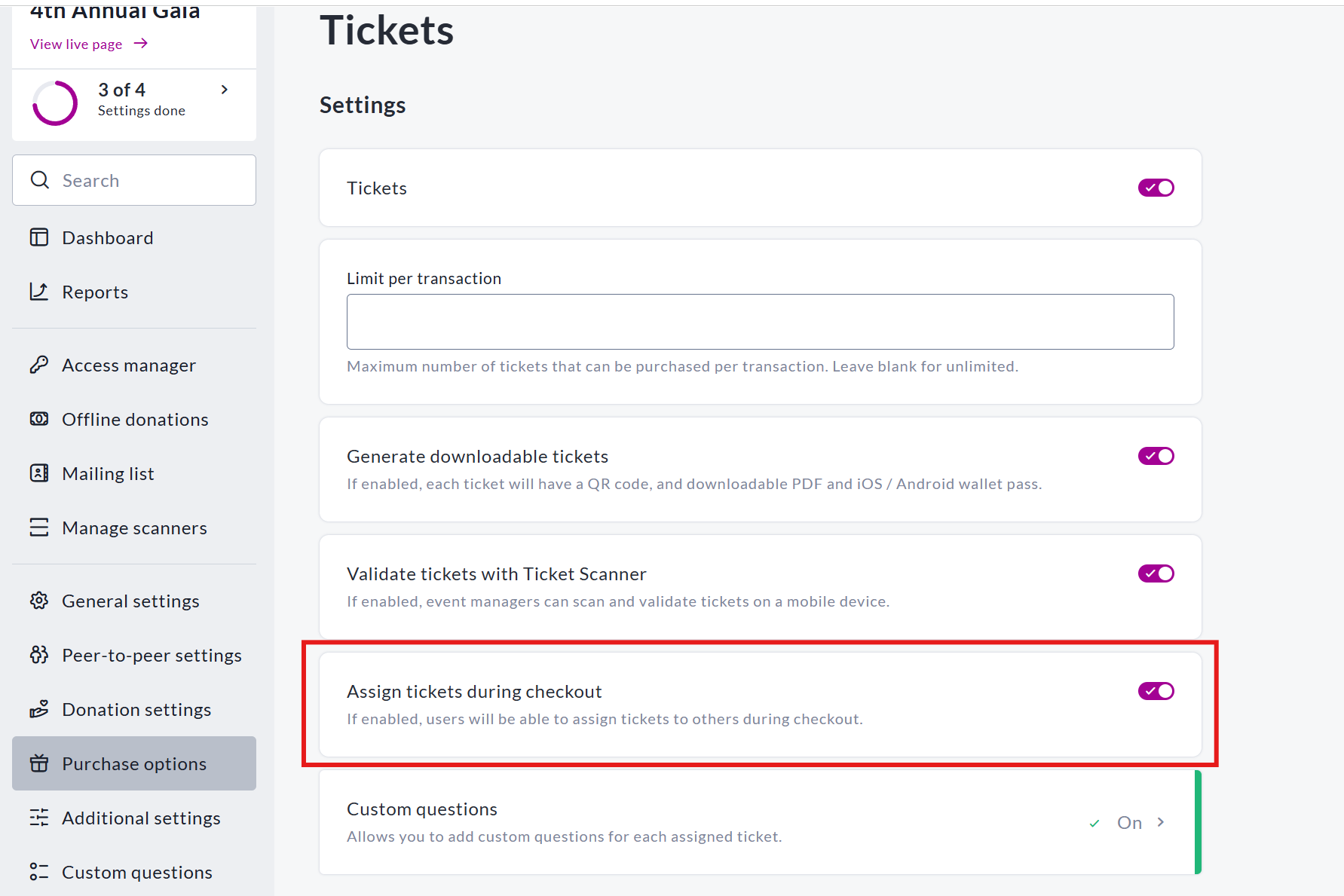
View of the Assign tickets during checkout feature being toggled on
Once enabled, users will be able to assign a name and email address to each ticket during the checkout process.
How It Works for Ticket purchasers
When a ticket purchaser selects more than one ticket at checkout, they will see a new step where they can assign each ticket individually.
Required fields: First Name, Last Name, and Email
Optional fields: Phone Number and any Custom Questions you've added
Donors can select "Same as previous" to speed up entry if multiple tickets are for the same person
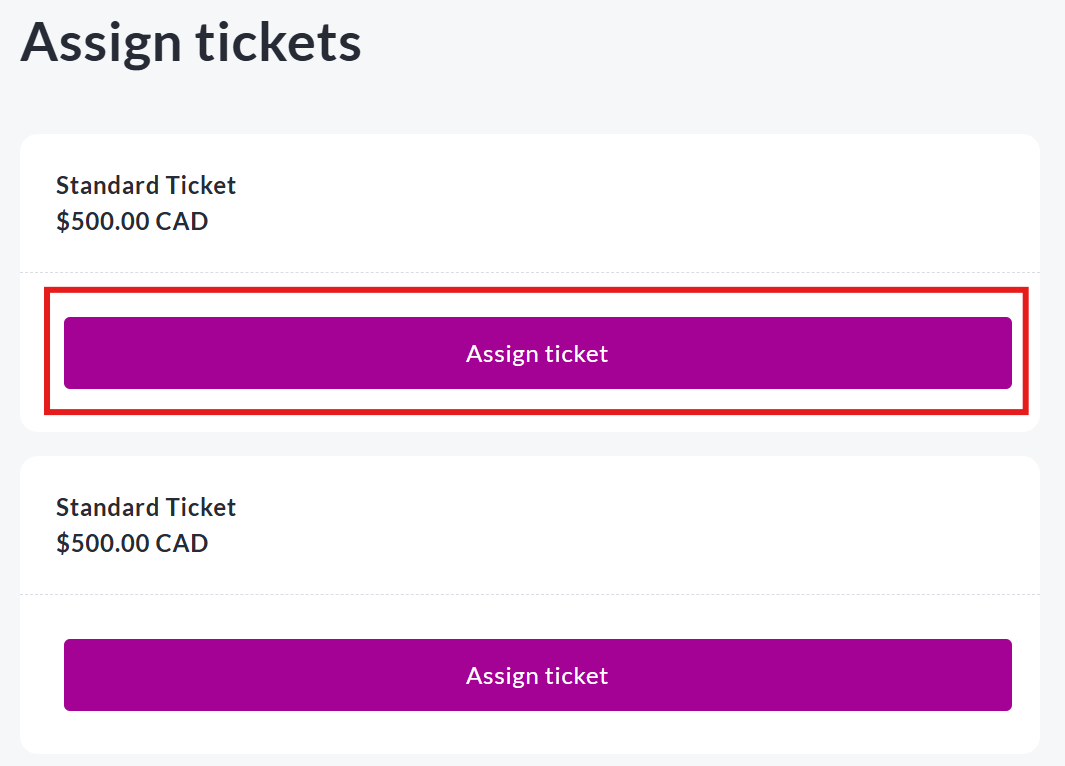
View of Assign ticket button on checkout page
How Tickets Are Delivered
Each assigned attendee will receive their ticket via email, along with the following:
A PDF ticket attachment (for printing or saving)
A button to add the tickets to your Apple Wallet or Google Wallet
A QR code embedded directly in the email for quick scanning at the event
The purchaser will also receive a full summary email containing all ticket details, including copies of each assigned ticket.
Reporting & Admin Access
To view assigned ticket data:
Log in to your CrowdChange site.
Go to your fundraiser and click Manage fundraiser.
Click Reports on the left-hand menu
Select Tickets report
The report will include each ticket holder's name, email, phone (if collected), and their assigned ticket(s).