
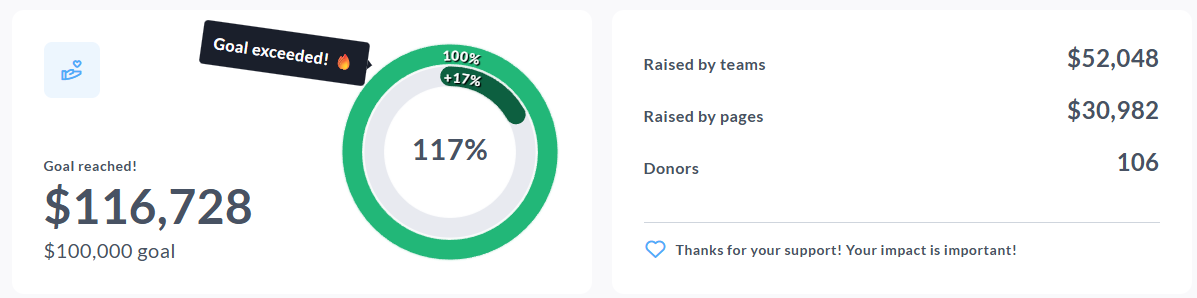
The Donation progress block displays key fundraising metrics on your fundraiser page, including the total amount raised, your goal (if enabled), and optional totals like Raised by teams, Raised by pages, and Donors.
This block now supports stretch goals, meaning that if your fundraiser exceeds its goal, the progress indicator can display progress above 100%, and you can optionally show a “goal exceeded” celebration hint and customize the exceeded progress colors.
If your fundraiser has a goal enabled, it will be shown in the Donation progress block. If you elect to display this block without a goal set, it will count overall funds raised, without showing a goal.
How to edit the Donation progress block
To edit the Donation progress block, follow the below steps:
-
Go to your CrowdChange page and Log in
-
Once on the fundraiser you would like to edit, click Manage fundraiser
-
Once on the Fundraiser dashboard, click Design your fundraiser
-
Scroll to the Donation progress block, and click the Edit button
-
Make your updates (Layout, Appearance, Content, etc.)
-
Click Save to publish your changes
How to add a Donation progress block
If your fundraiser is missing a Donation progress block, it is possible it was previously deleted. To restore it, please follow these steps:
-
Go to your CrowdChange page and Log in
-
Once on the fundraiser you would like to edit, click Manage fundraiser
-
Once on the Fundraiser dashboard, click Design your fundraiser
-
Within the user interface, between any two blocks, click the Plus icon
-
The list of available blocks will then be shown, select the Donation progress block
-
Click Save if prompted
Layout options
Within the Layout section, you can control how the Donation progress block is displayed on the page:
-
One column - Displays your fundraising progress in a single, streamlined section.
-
Two columns - Displays a larger primary panel on the left (for example, total raised and the progress chart) and a secondary panel on the right for additional stats (for example, raised by teams, raised by pages, donors).
Primary block
The Primary block is the main metric shown in the Donation progress block. In the Raised amounts section, you can choose to display:
-
Raised amount
-
Goal
If the Goal is enabled, you can edit the goal amount directly in this panel. Please note, updating this goal value will also update the fundraiser goal in the fundraiser’s General settings.
Secondary blocks
The Secondary blocks section allows you to show or hide additional fundraising stats, such as:
-
Raised by teams
-
Raised by pages
-
Donors
You can toggle each secondary block on or off. If needed, you can also promote a secondary stat to be the main display by selecting Make primary.
Stretch goals and goal exceeded settings
When your fundraiser exceeds its goal, the Donation progress block can visually display progress beyond 100% (for example, 115%), which supports stretch goal momentum and helps communicate that the campaign is continuing to grow.
Within the Appearance settings, you can also enable and customize:
-
Celebrate goal reached - Shows a celebration confetti effect when the goal is reached.
-
Exceeded goal hint - Displays a short celebration label near the progress chart when the goal is exceeded (the text is customizable, and is designed for short messages like “Goal exceeded!” or a stretch goal callout).
-
Exceeded progress bar color - Allows you to set a separate color for the exceeded portion of the progress bar or chart, making stretch progress visually distinct from standard progress.
Tip: If you are testing these settings while editing, use the fundraiser preview in the Design your fundraiser view to confirm how the goal reached and goal exceeded states look before publishing.
Appearance
The Appearance section controls how the Donation progress block looks, including the progress visualization and colors.
Progress bar style
You can choose between:
-
Donut chart - A circular progress chart, ideal for highlighting percent-to-goal.
-
Horizontal bar - A more traditional progress bar display.
Color settings
You can also customize:
-
Background color
-
Primary block background color and text color
-
Secondary block background color and text color
-
Progress bar color
-
Filled progress bar color
-
Exceeded progress bar color (stretch goals)