
eCards allow supporters to purchase and send a card while supporting your fundraiser. You can offer your own card designs or let donors upload a personal image, with delivery by email, SMS, or postal mail arranged by your organization.
Before you begin
Log in to your CrowdChange site as an admin and open the fundraiser you want to add eCards to.
Enable eCards on your fundraiser
-
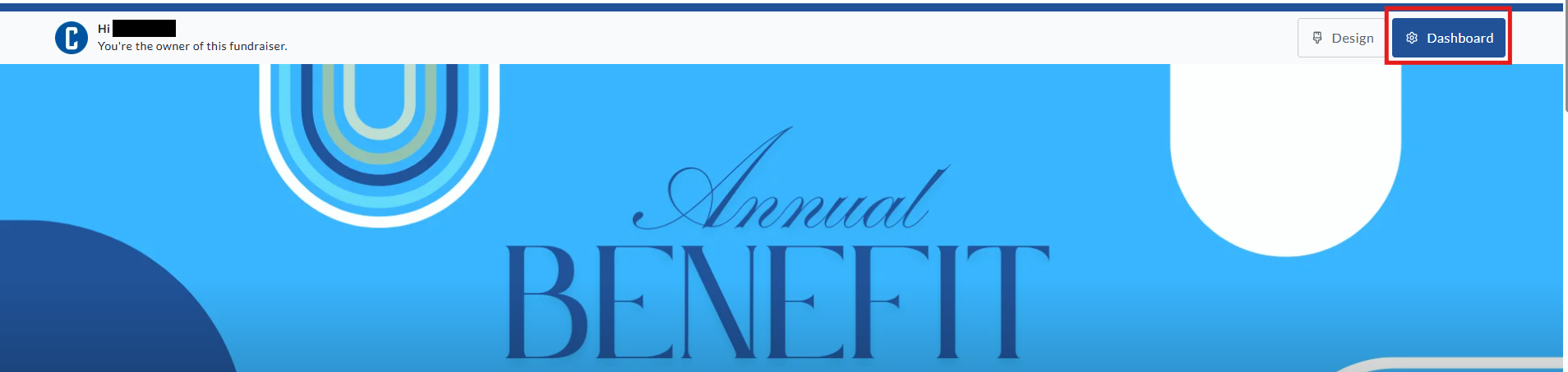
Click Dashboard in the upper-right corner of the fundraiser page.
-
In the left sidebar, click Purchase options.
-
Select eCards & Tribute cards.
-
Turn on Use eCards & Tribute cards.
-
Under Select card type, choose eCards.
-
Click Save.
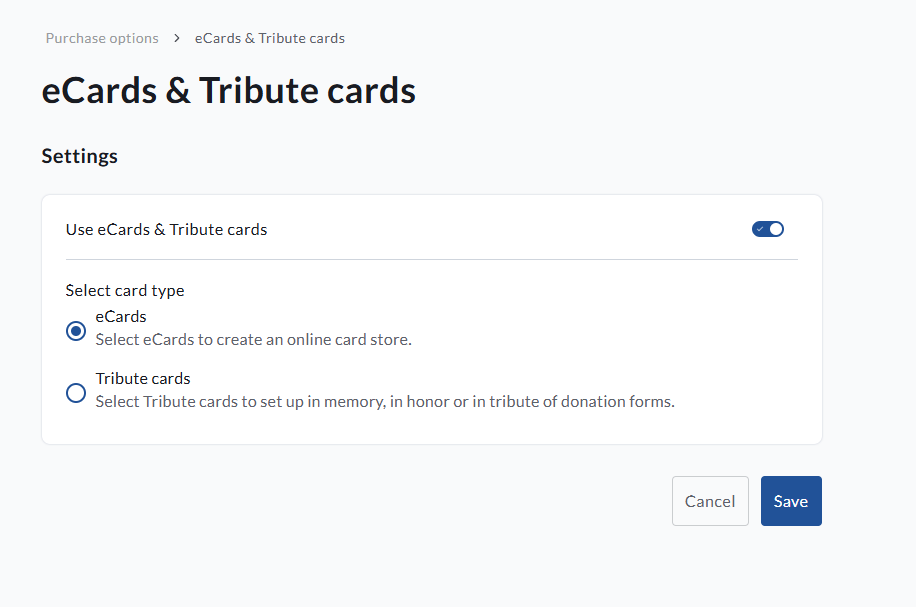
The page will refresh, allowing you to configure purchase settings and create your eCards.
Configure purchase settings
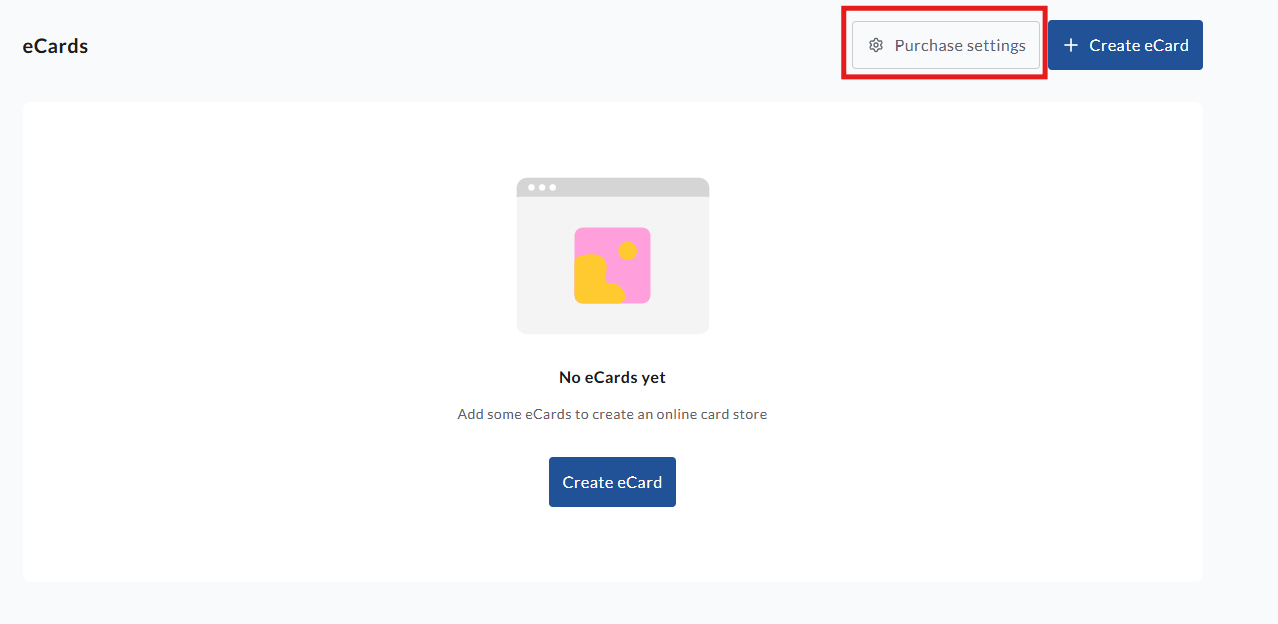
Before adding cards, click Purchase settings to choose the checkout and delivery options for your fundraiser.
Require a card purchase
Turn on Require card purchase to complete checkout if supporters must purchase a card to complete checkout.
This setting is off by default. When it is off, donors can make a donation without purchasing a card.
Choose delivery methods
Select the delivery methods you want to offer:
|
Delivery method |
How it works |
|---|---|
|
|
Sends the card to the recipient’s email address. This is the default delivery method. |
|
SMS |
Sends the card to the recipient’s mobile phone number. |
|
|
Allows the purchaser to request a physical card that your organization prepares and mails. |
Mailed cards: CrowdChange notifies an administrator when a mailed card is purchased. Your organization is responsible for preparing and mailing the card; CrowdChange does not mail cards on your behalf. We recommend enabling Mail only if your organization already has a process for handling mailed cards.
Set a default delivery date
Under Default delivery date, choose one of the following:
-
Now: Send electronic cards immediately upon purchase.
-
Select a date: Set a default delivery date, such as February 14 for a Valentine’s Day fundraiser.
Purchasers can still choose their own delivery date. The date you set here is the default selection.
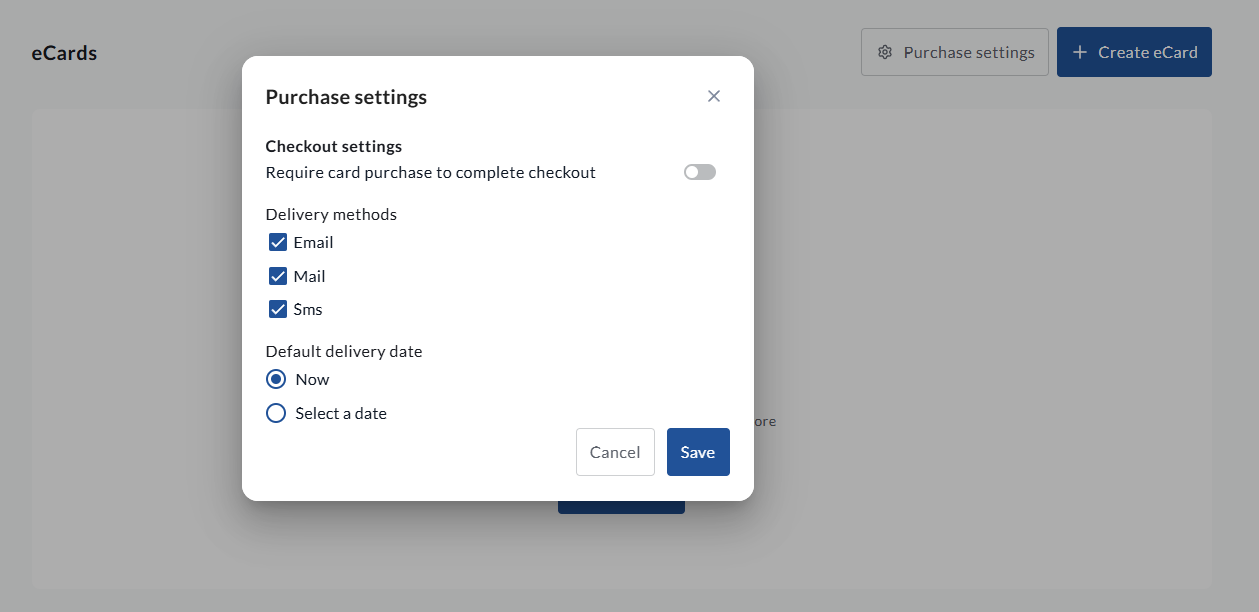
Click Save to apply your purchase settings.
Create an eCard
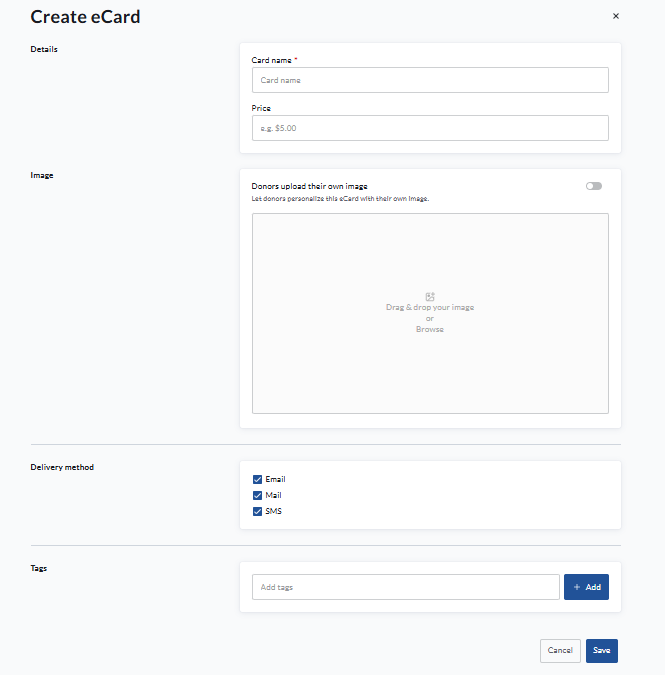
On the eCards page, click Create eCard, then complete the following settings.
Enter the card details
Enter a Card name and set the Price for the card.
Choose how the card image is provided
You can upload a card design or allow donors to provide their own image.
Use your own image
Leave Donors upload their own image turned off. Drag your image into the upload area, or click Browse to select it from your computer. For best results, use a 16:9 image ratio.
Allow donors to upload an image
Turn on Donors upload their own image to let purchasers personalize the card with a photo or image of their choice. Photos would be added directly from the device or computer of the user.
You can also add an optional image overlay. An overlay is a design with a transparent background that sits on top of the donor’s uploaded image. For example, you could add a frame containing your organization’s logo or a seasonal message while leaving the centre transparent so the donor’s photo remains visible.
CrowdChange uses content filtering to help prevent inappropriate images from being used. Allowing donor uploads gives your organization less control over the images selected. If you prefer to control the full card design, keep donor uploads turned off and use your own image.
Select delivery methods for this card
Under Delivery method, select the options you want to offer for this card: Email, Mail, or SMS.
Purchase settings let you configure delivery options for the fundraiser, while the card settings let you choose the methods for each card. For example, if you have printed cards ready to mail, you could offer Mail as the only delivery method for that design.
Add tags
Use Tags to categorize the card by occasion or theme, such as Birthday, Anniversary, or a specific holiday. Enter each tag in Add tags, then click + Add.
Save the card
Click Save to create the eCard. Repeat these steps to add more cards to your fundraiser.
How to Send eCards on CrowdChange
Choose a card, add your recipient’s details and message, then complete checkout to purchase it.
Choose your card
-
Open the fundraiser page and click Buy eCards.
-
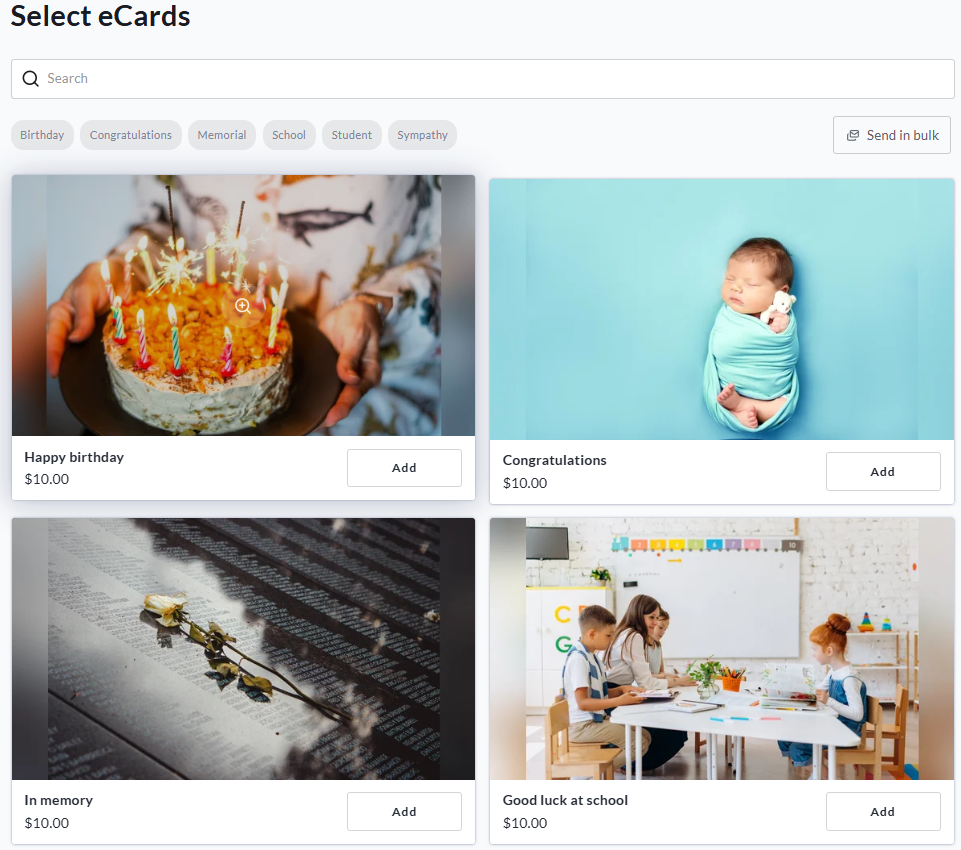
Browse the available cards. Use Search to find a card, or select a tag at the top of the page to browse by occasion or theme.
-
Click Add on the card you want to send.
To send multiple cards, select Send in bulk.
Add the recipient details and message
-
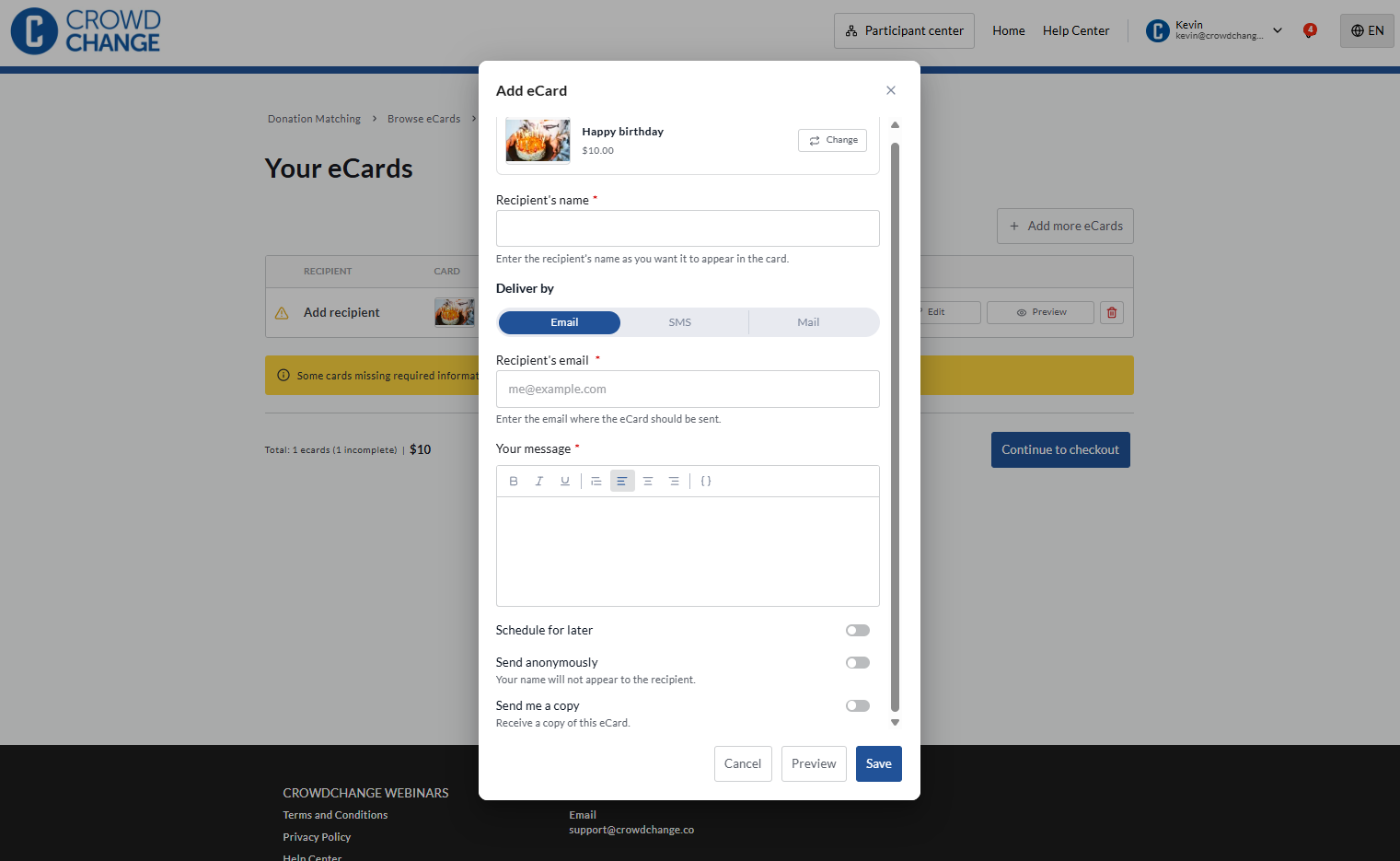
In the Add eCard window, enter the Recipient’s name as you want it to appear on the card.
-
Under Deliver by, choose one of the available delivery methods and enter the corresponding recipient details:
|
Delivery method |
Recipient details |
|---|---|
|
|
The recipient’s email address. |
|
SMS |
The recipient’s mobile phone number. |
|
|
The recipient’s full mailing address. |
Available delivery methods depend on the fundraiser and the card you selected. If you choose Mail, the fundraising organization is responsible for preparing and mailing your card.
-
Enter the message you want to include in Your message.
Choose your sending preferences
You can also turn on the following options:
-
Schedule for later: Choose a future delivery date.
-
Send anonymously: Hide your name from the recipient.
-
Send me a copy: Receive a copy of the eCard yourself.
Click Preview as you complete the form to see how your card will look. Once you are happy with the details, click Save to add the completed card to your order.
Review your cards and complete checkout
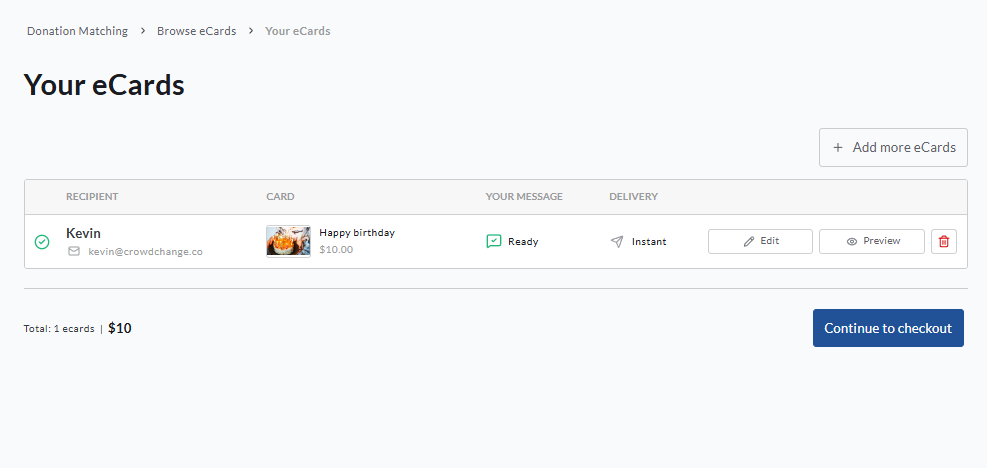
The Your eCards page shows the cards in your order. You can click Edit to update a card’s details or Preview to review it again.
Click Add more eCards if you want to add another card. When you are ready to proceed, click Continue to checkout.
At checkout, you can also donate or purchase tickets, registration, or sponsorships if the fundraiser offers these options. Complete checkout and payment to finish your purchase.